Maximo Open Forum

 View Only

 Track history of asset alias

  • Everything Maximo
  • Maximo Application Suite
Trisha S's profile image
Trisha S posted 11-02-2026 12:10

Hi,

Can someone suggest how to achieve this requirement?

I want to display the asset alias history in a dialog box along with a few other asset attributes.

To achieve this, I enabled auditing for the relevant field in the PLUSTASSETALIAS table. However, I noticed that it does not capture the previous alias records as expected. It only captures newly created alias values.

Also, I observed that the PLUSTASSETALIAS table does not directly indicate the current asset alias. Instead, it stores all the aliases associated with an asset. When an alias is marked as Default or Active, the corresponding flags (1) are updated for that particular record.

Given this behaviour, how can I retrieve and display the asset's alias history, particularly the values in the PLUSTASSETALIAS.ALIAS field, in a dialog box?

Is there a recommended approach to achieve this using Maximo's auditing functionality or any other configuration/customization?

Ravi Kumar Rajapudi's profile image
Ravi Kumar Rajapudi
Please check if this article can help you: Asset Alias – Maximo Secrets

First, go to Database Configuration > ASSET object > Relationships and check whether a relationship already exists or create a new one (e.g., ALL_ASSETALIAS) with Child Object: PLUSTASSETALIAS and Where Clause: assetnum = :assetnum and siteid = :siteid. 
 
Next, open the ASSETS (or ASSETSTR) application in Application Designer and add a <dialog> element or open an existing custom dialog.
Inside the dialog, add a <table id="alias_hist_tbl" relationship="ALL_ASSETALIAS" label="Asset Aliases"> and configure columns for ALIAS (Alias Identifier), DESCRIPTION, ISDEFAULT (Default Flag), ISACTIVE (Active Flag), and CHANGEDATE / CHANGEBY (to indicate when the entry was created or modified).
Craig Kokay's profile image
Craig Kokay

Good morning, Trisha

Firstly, you are absolutely right that only when you enabled the ACTIVE and/or the DEFAULT files, in the database a value of 1 will be set.  This is because you enabled the field.  Equally, if you disable, then a value of 0 will be set.  This is standard.

There can be many aliases that are active, but only one can be default.  The default is the one that you will see where this is displayed in reference to the asset.

You also said that you enabled eAudit for the field, however, you did not mention that you had done the same for the object.  The object plus any fields that you wish to monitor/capture through eAudit must be enabled together.
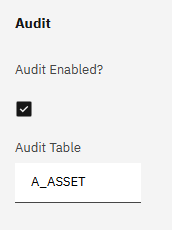
Looking at this screenshot from the object, it will tell you what underlying table will the audit values be captured.  Please have a look at that table.

You also mentioned that you observed that the "PLUSTASSETALIAS table does not directly indicate the current asset alias".  Yes, it does,  Current alias are those marked as ACTIVE.  Of those, active aliases, one can be marked as DEFAULT which as already mentioned is used where you see it in relation to the asset.

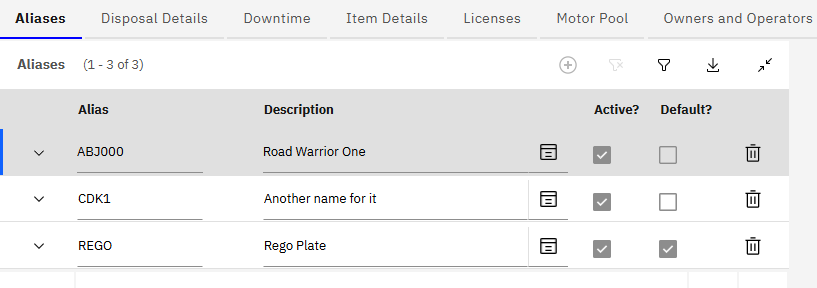
So, base answer, is to enable eAudit for the object and attribute(s), then make a change and go look at the corresponding eAudit table.

Craig Kokay's profile image
Craig Kokay

Hi Ravi,

Whist that is a great article, you missed this statement "...does not capture the previous alias..."

The asset alias table does not record the change to the asset alias.

So, you can:

  • Add a new alias
  • Delete an alias
  • Mark it active/deactive
  • Mark it default/non-default

There is the basic approach where an alias no longer applies and you just deactivate it, but the does not capture and the talk about audit, means tracking the history of the changes.  This is where eAudit kicks in, and reading what has been done, I'm reading that eAudit is not configured correctly.

One take away is that I did not talk about how to display the history.  Your comment is slightly along the right line.  These are the steps I see to display the history:

  1. Enable eAudit on the PLUSTASSETALIAS object
  2. Set the eAudit flag on each field that you wish to be captured when a change occurs.  NB: These are also the trigger fields
  3. Run the DB Config
  4. Create a new relationship from the PLUSTASSETALIAS object to the A_PLUSTASSETALIAS (assuming you used that name for the eAudit table)
  5. Using the Application Designer
    1. Add a new table to a suitable location.  Most likely this is best on the History tab of the Asset (Tr) application
    2. Link the table using the new relationship
    3. Add the columns that you wish to display
    4. Make the table readonly

Enjoy